![Mobilityways_Primary_Logo_White-1.png]](https://content.mobilityways.com/hs-fs/hubfs/Mobilityways_Primary_Logo_White-1.png?height=50&name=Mobilityways_Primary_Logo_White-1.png)
What is CommuteBoost?
The CommuteBoost feature in the Mobilityways app encourages sustainable commuting by offering rewards for activities like walking, cycling, bus, train, carpooling and more.
Users can join challenges set by their employers to earn incentives by logging qualifying commutes through the app.
How do I join a CommuteBoost challenge?
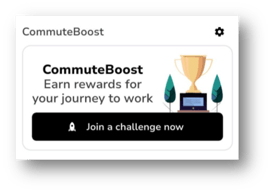
When you first sign up to the Mobilityways App you will see this tile on your home screen. Simply click ‘Join a challenge now’ and follow the sets to join your first challenge.
Your workplace geo fence
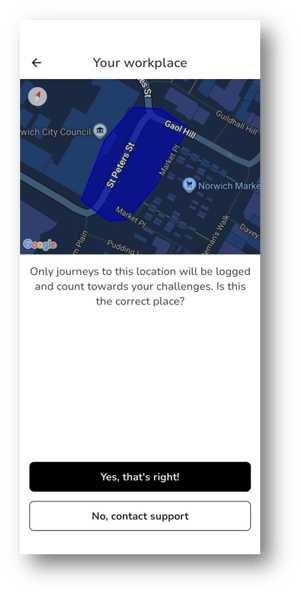
After joining your first challenge you will be shown your workplace geo fence. This is the area you must enter for your journey to be logged and count towards a challenge.
What is a commute window?
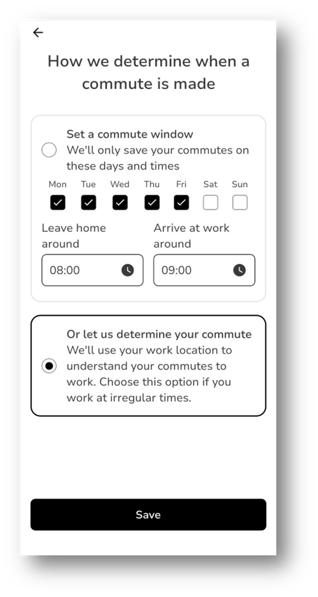
To take part in challenges you will need to log your commutes to work. If you set a ‘commute window’ our system will ignore all information outside of those times.
Alternatively, our recommended option is to ‘Let us determine your commute’. If you choose this option, the system will know when you enter your workplace and then work backwards to when you were last still for a long period. The system will then use this as your commute and discard all other information.
How do I log commutes?
There are two ways to log commutes; automatically (recommended) or manually.
When you first join a challenge, you will be asked to set up some permissions which will determine if you’ll log automatically or manually.
The first permission you’ll be asked to set is the ‘Location’ permission. This is required for both automatic and manually logging.
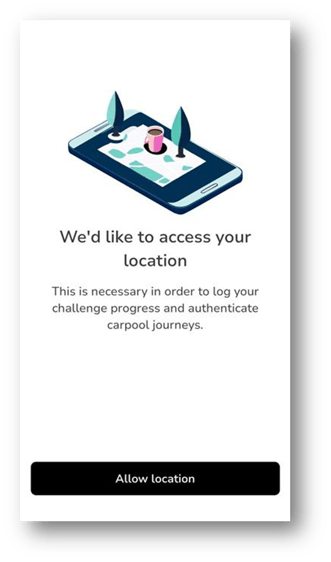
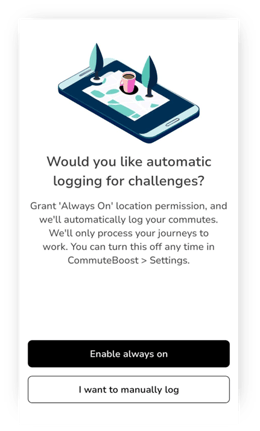
Next, you’ll be asked to enable the ‘Always on’ location permission. This will allow you to ‘set and forget’. The app will automatically log and know when you enter your workplace. It will then work backwards to when you were last still for a long period. The system will then use this as your commute and discard all other information.
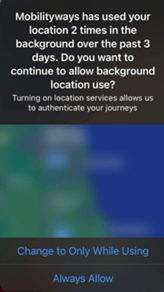
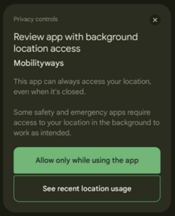
Note that if you set ‘Always on’ you will occasionally be asked the Mobilityways app to continue to use background location. On iPhone simple click ‘Always allow’ to continue to automatically log your commutes, and on Android just dismiss the notification.
Alternatively, you can choose ‘I want to manually log’. If you select this, you will be asked if you want to set a reminder to start logging manually.
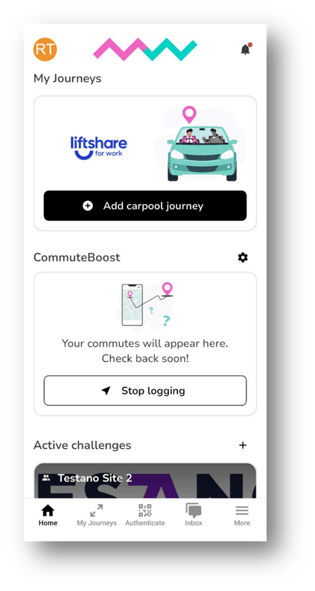
If you choose to manually log, you will need to click ‘Start logging’ at the start of your commute, and ‘Stop logging’ once you are in your workplace geo fence.
Once you’ve chosen how you’ll like to log your commutes, you’ll be asked to ‘Allow physical activity’ permission.
This helps the us understand they type of activity you’re doing so we can attribute the correct mode (walk, cycle, bus, etc.) to your commute.
This is required for both automatic and manually logging.

Why can I see the location dot still activate when I’m not commuting?
For automatic ‘set and forget’ logging to work the Mobilityways app requires access to location in the background.
When you enter your workplace the system then works backwards to when you were last still for a long period. The system will then use this as your commute and discard all other information.
Can I change from automatic to manual logging later (or vice versa)?
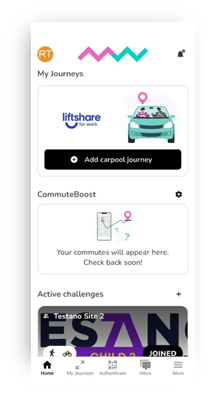
To change how you log simply click the CommuteBoost cog icon on the home screen (or go to More>CommuteBoost>Location settings).
You can toggle the ‘Always log location’ setting on for automatic logging and off for manual logging.


How do I start logging manually?
If you have set up to manually log your commutes, then you must click ‘Start logging’ at the start of your commutes. Once you have entered your workplace geo fence you must click ‘Stop logging’.
If you click ‘Stop logging’ before you enter the workplace geo fence the commute will not be logged.

How do I confirm my journeys?
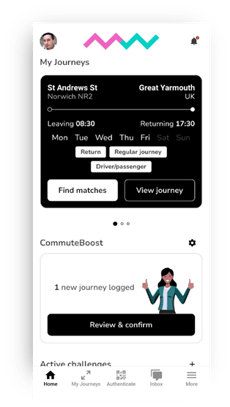
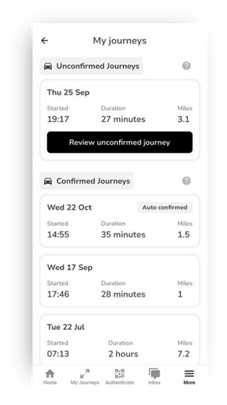
When you have a new journey to confirm you will see a new tile on your home screen. Click ‘Review & confirm’ to go to your Logged Journeys screen. You can also access this from More>CommuteBoost>My Journeys.
You will see a list with any unconfirmed journey at the top. Click ‘Review unconfirmed journey’.
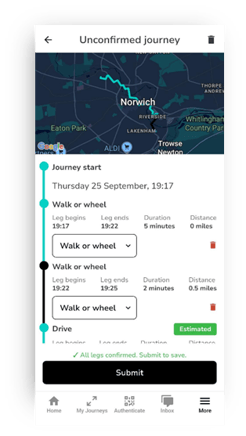
You can then review your journey. The system will try and predict the mode of travel you took.
If the journey was not a commute you can delete it using the bin icon at the top.
You can set the mode of travel using the dropdown if it is not predicted or correct.
Any legs of the journey that were not part of your commute can be deleted using the red bin icons.
After you have selected all the modes of travel you can submit your journey.
After being submitted your journey will be checked to see if it qualifies for any active challenges you have joined.
How do I get my boost/reward?
When you earned a boost, it will appear in your app. There will be information on the boost telling you when your reward will be processed.
Once the reward has been processed you will receive a notification.
What information can my employer see?
If you are taking part in a CommuteBoost challenge then your employer will be able to see the mode you travelled and the date of the journey.
Only you will be able to see the route, duration, start and end times of your commutes.